JOIN OUR WHATSAPP CHANNEL







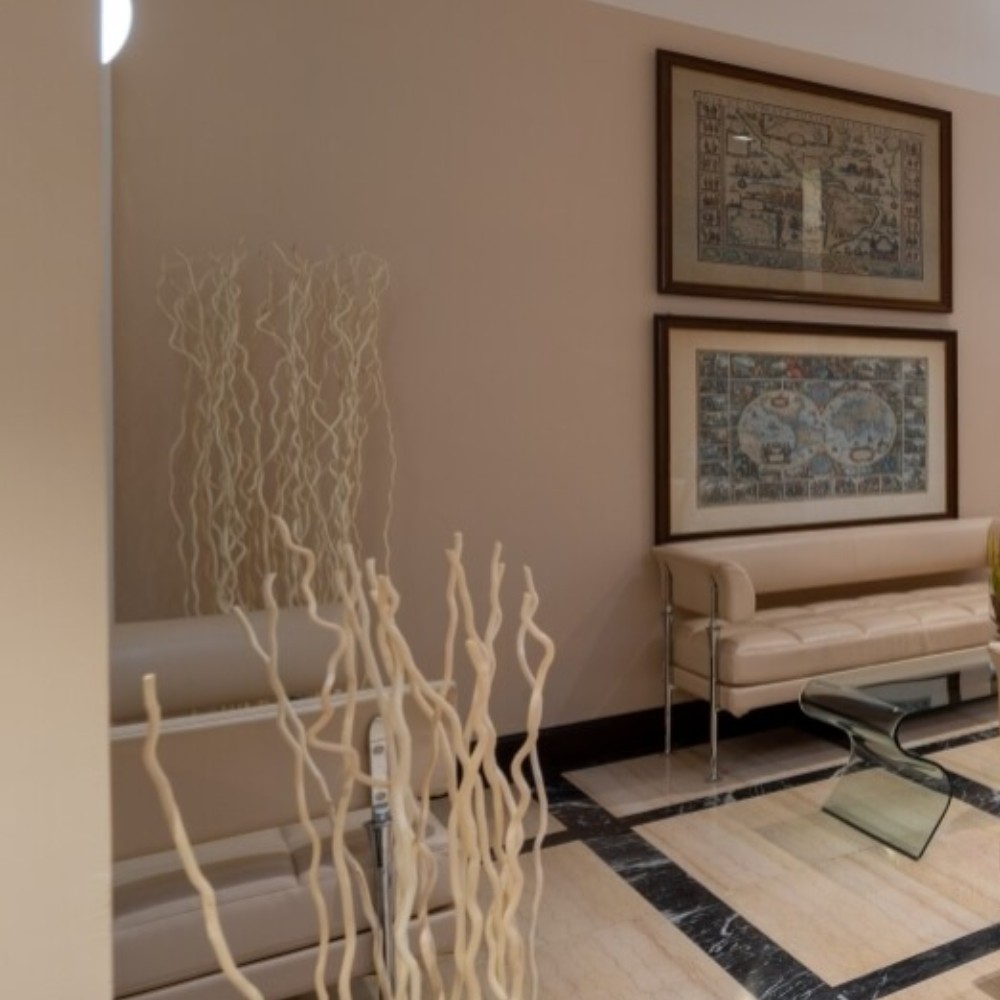















































Technology Tips: A step by step guide to adding a virtual background in Zoom
Don’t want to show your bedroom to your colleagues? Then have a look at the steps given below to add a virtual background during a video conference.





An important thing to keep in mind during a video conference is to have a background that is not distracting or messy. But it might seem like an invasion of privacy to let other people have a glimpse of your bedroom or of the mess that you live in! A clever way to prevent this from happening is to use a virtual background.
So if you want to know how to add a virtual background during a video call to protect your privacy in every possible way, then follow the detailed step-by-step guide given below.

Step 1
Open the Zoom app on your desktop and click on your profile picture in the top right corner. Next, click on “Settings”.
Step 2
Click on “Background and filters”. Click on “Virtual background”. Choose the background that you want.

Step 3
You can tick the green screen option if you have one at your home. If you don’t have a green screen, then make sure to have a background that is of one solid colour to ensure that the virtual background is evenly lit.
Step 4
You can also upload your own image for a virtual background by clicking the plus icon and then clicking on “Add image”.
ALSO READ: Technology tips: Steps to add a picture to your Zoom profile
ALSO READ: Technology tips: Steps to add a picture to your Zoom profile