JOIN OUR WHATSAPP CHANNEL















































Learn How to Connect Android Smartphone to Your Smart TV
With the ever-increasing number of on-demand and streaming apps available on current TVs, projecting the video from a phone or tablet to a bigger display is rarely the preferred method of viewing.




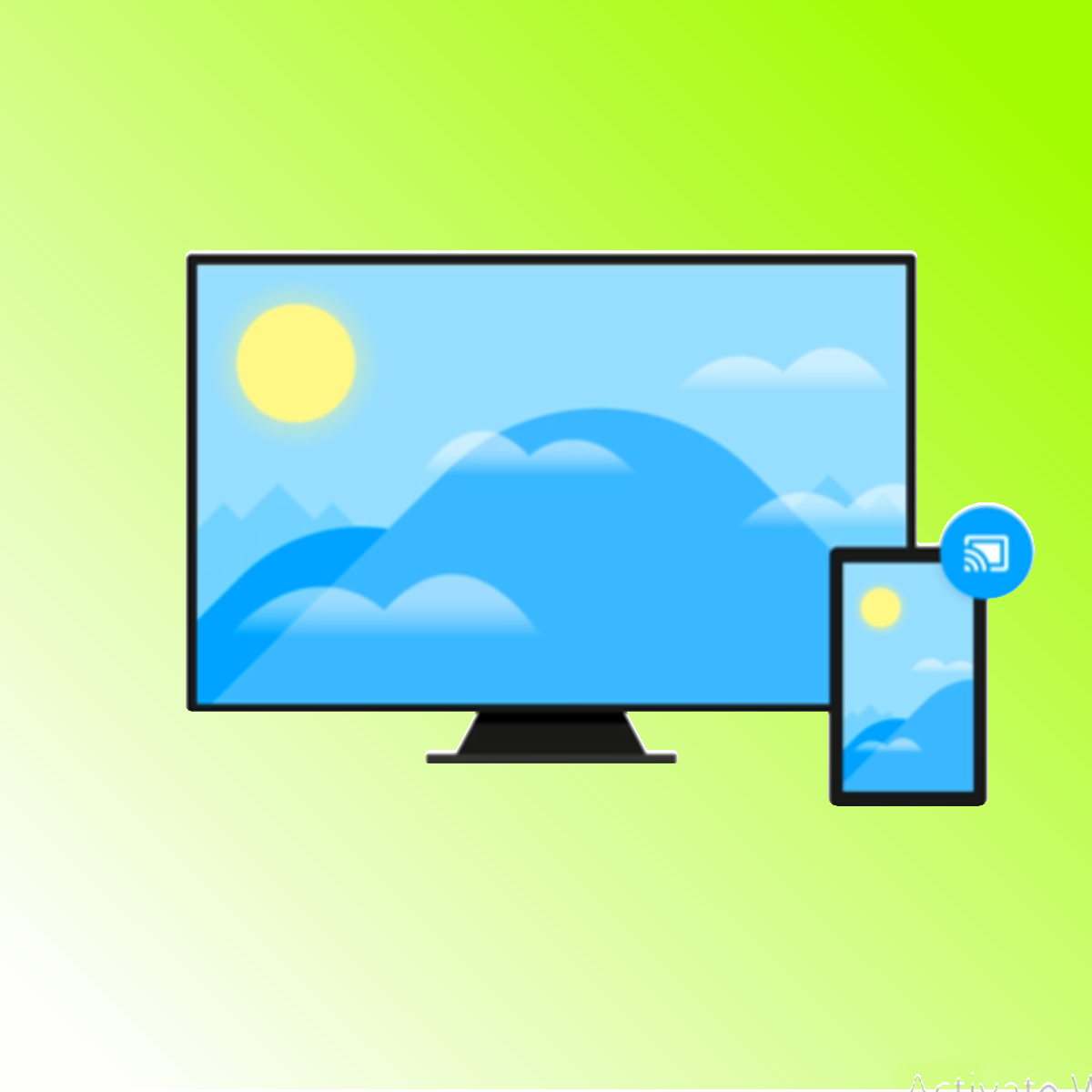
When your smartphone screen is paired with a smart TV, it might be a wonderful combination. Connecting a phone to a smart TV provides access to a variety of entertainment options, including viewing photographs, movies, music, games, online TV shows, and apps, among other things.
With the ever-increasing number of on-demand and streaming apps available on current TVs, projecting the video from a phone or tablet to a bigger display is rarely the preferred method of viewing. You may connect your phone to your smart TV in a variety of ways. The most used method, however, is wireless. The method for connecting the two devices is determined by the type of phone and television you have.
Casting or Mirroring
Casting media from your tablet or smartphone to your TV is actually rather simple, but the vast array of names used in combination with it might be confusing, ranging from Miracast and Wireless Display to screen mirroring and SmartShare, and everything in between, there's something for everyone. AirPlay is another option, although it's only for Apple devices.
All you need to do is check for a casting or screen mirroring option in your phone or tablet's Settings, which may be found under Connected Devices or Display Settings, depending on your device.

Streaming over a wireless network is referred to as "casting." You should be able to stream material from apps like YouTube or Netflix if you connect your TV and Android mobile device to the same Wi-Fi network. Casting devices like the Google Chromecast streaming devices are great, but you may also use third-party apps built into your Smart TV to cast. Casting apps will not display your Android's precise screen on the TV. Instead, they'll present videos and photographs in a format that better fits the TV's size and shape.
There are numerous third-party apps that allow you to connect your Android to your TV over Wi-Fi. Try out a few different apps to discover which you like. Since the capability was introduced with Android version 5.0 Lollipop, support for screen mirroring has varied by manufacturer. A Cast button can be found in the phone's settings or in the pulldown settings shade on many phones.
Connect with HDMI

If you don't want to mess with settings, the simplest way to connect your Android phone or tablet to a TV is to use an HDMI cable, provided your device supports HDMI streaming. To pair your smartphone with a TV, connect one end to the charging port on your phone and connect the other to the HDMI input on your TV, then adjust the Source on your TV to display the HDMI input. A normal HDMI cable, on the other hand, will not fit into your phone. If your phone or tablet has a USB-C connector, you can easily get around this by purchasing an HDMI cable with a USB-C port on one end.
For more tech-related news subscribe to our YouTube Channel if you haven’t done it yet.